Fix369 · Transcript · · Updated
Fix: Trust This Computer Not Showing on iPhone 17 Pro Max! – Transcript
Video by Fix369 · Watch the original on YouTube
Summary
AI-generated from the transcript. Verify details against the source video.
- The speaker advises ensuring that either the Apple iTunes app or the Apple Devices app is installed and open on the connected device.
- To perform a force reboot, the user must quickly press and release the volume up and down buttons, then hold the side button until the Apple logo appears.
- Users can open settings, go to general, tap transfer or reset iPhone, choose reset, and select reset location and privacy to fix the issue.
Use this video with Pro
Reading, copying and transcript downloads are free. Create saved AI results for this video with a signed-in Pro account ($4.99/month).
Transcript
Search ignores accents. All transcript text stays visible.
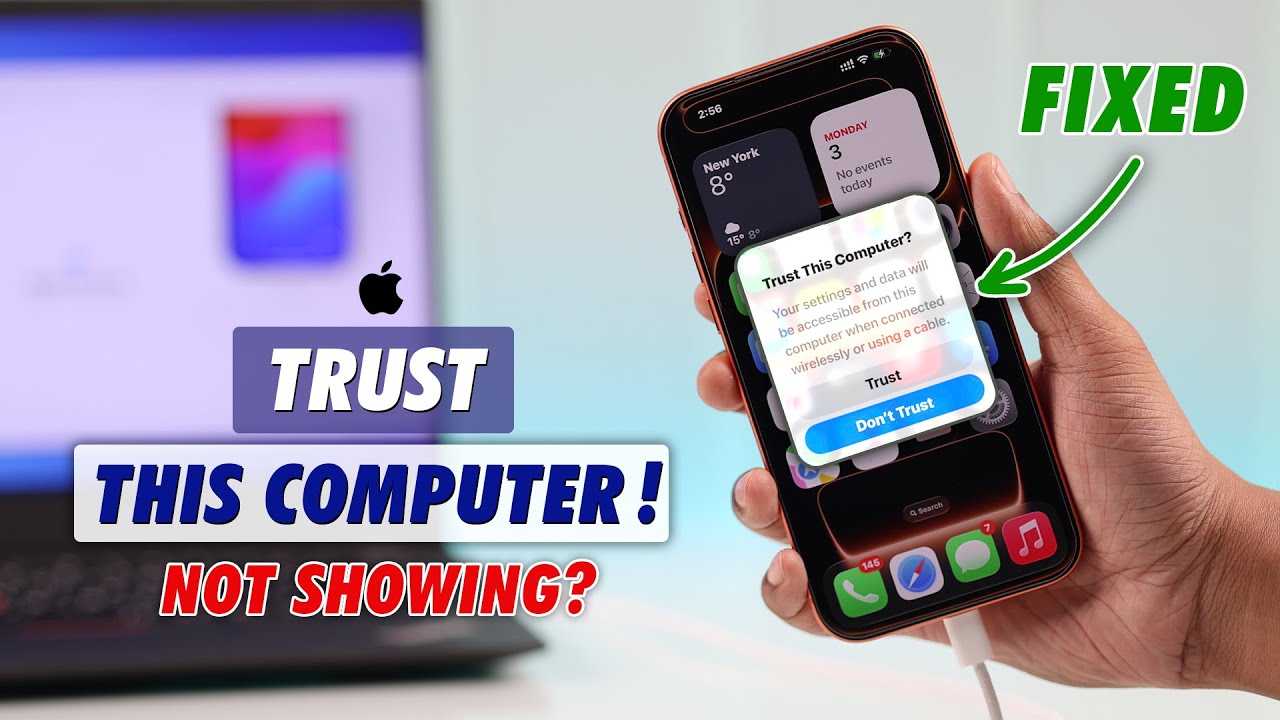
Trust this computer not showing up on your iPhone or the pop-up keeps flashing and disappearing? Follow these easy steps to fix it in less than a minute. First of all, make sure you have the Apple iTunes app or the Apple Devices app installed on the device that you're trying to connect your iPhone to. And also, one of them is open. But make sure both of these are not open at the same time. Now, simply unplug the cable from
your iPhone and plug it back in. and you should get trust this computer. If you're still not getting any pop-up, make sure it's plugged in properly into the other device. And you can also try a different port. Sometimes the cable may not be working properly. So also try changing the cable. If you're still not getting trust this computer popup, then let's force restart both our iPhone and the other device. To perform a force
reboot, quickly press and release the volume up, then the volume down, and then hold down the side button until the screen turns off and the Apple logo reappears. Now, give it another try. If it's still not working, then here's what will definitely work.
Open settings. Tap on general. Scroll all the way down. Tap on transfer or reset iPhone. Then reset and choose reset location and privacy.
Don't worry, this won't erase even a bit of your data. So tap on reset settings. And there you go. It's done. Now plug it back in. And boom. Here's your trust this computer popup. So, make sure to hit trust and then on your computer you'll see your iPhone will pop up. So, go ahead and do whatever you want. That's all. Leave a thumbs up if this helped and I'll see you